Kotoba Mimamori helps you review wording before posting on social media. This manual explains the basic flow and situations where the tool can be useful.
How-to video
You can watch a short video that shows the basic flow of using Kotoba Mimamori.
If the video does not appear, open the how-to video on YouTube.
When to use it
This tool is not for restricting language or deciding right and wrong. It is a helper for moments when you want to gently review wording before posting.
- Before posting on social media, when wording may sound too strong.
- When emotions are high and you want to reread before sending.
- When you want to make sure your intent is clear.
- When you want to soften a draft.
- When you want advice that fits a scene such as a post, reply, work request, or apology.
- When you want to choose the tone of advice, such as balanced, gentler, or business-like.
- When you are writing text and want hints for making the wording easier to receive.
- When your usual AI tool is unavailable and you still want to review text before posting.
Open Kotoba Mimamori
When you open the service, the main page appears. You can switch between light mode and dark mode from the top-right button.
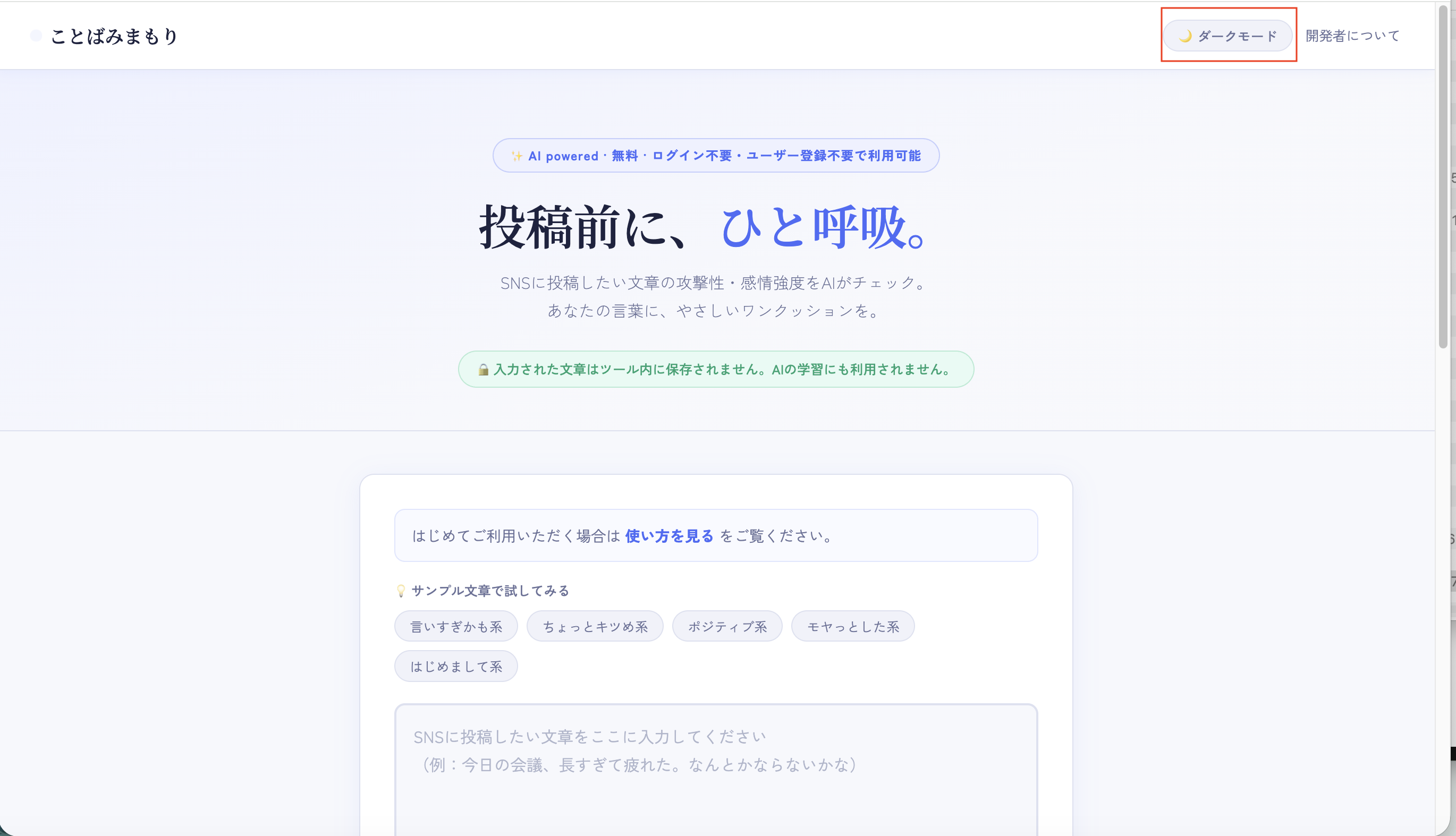
Click Dark Mode in the upper-right area.
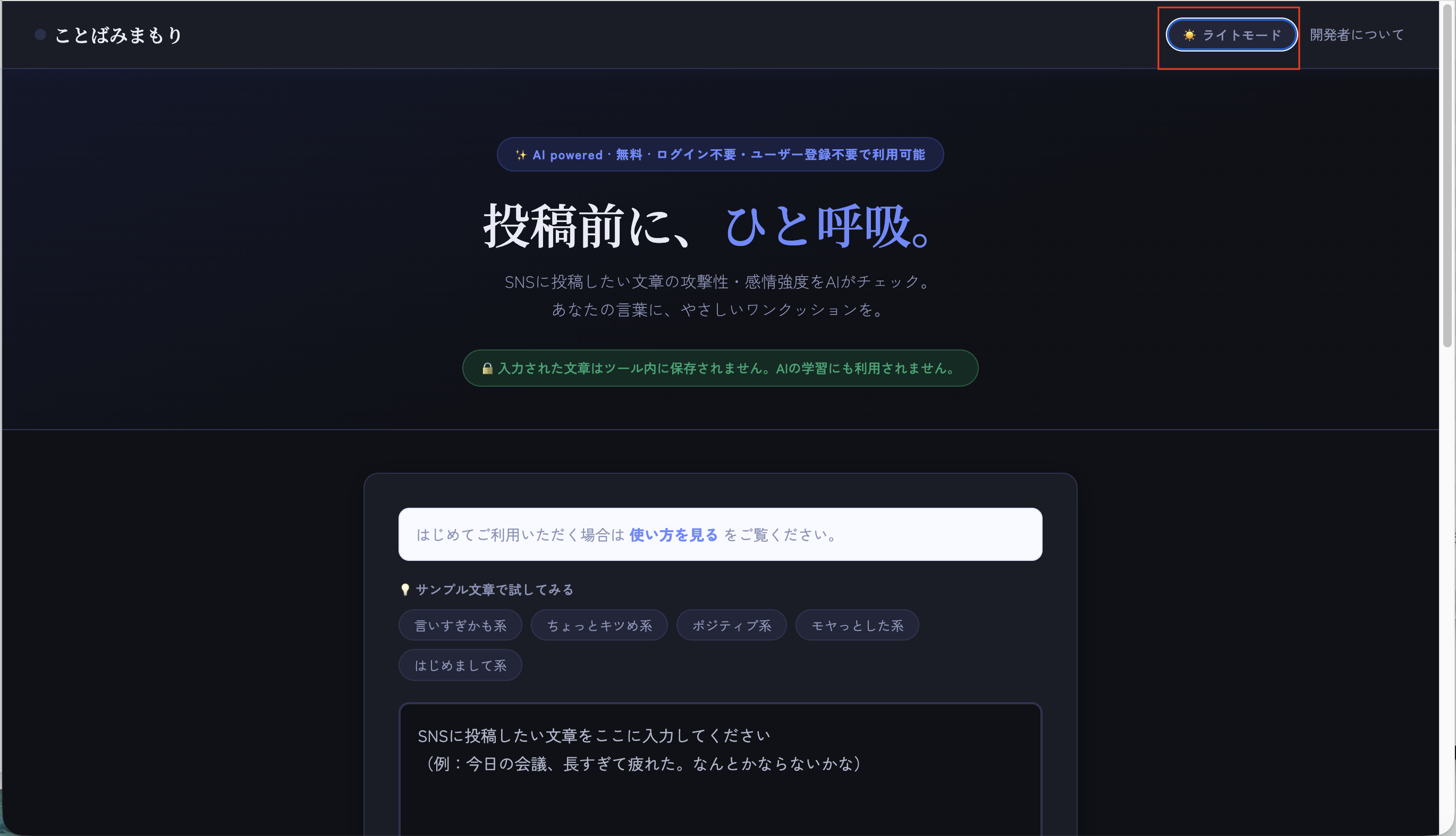
Click Light Mode to return to light mode.
- You can switch between light mode and dark mode whenever you need.
Enter the text you want to check
Enter a draft post, reply, comment, message, or other text you want to review. Short text is fine too, and you can also use it before sending work messages or other written communication.
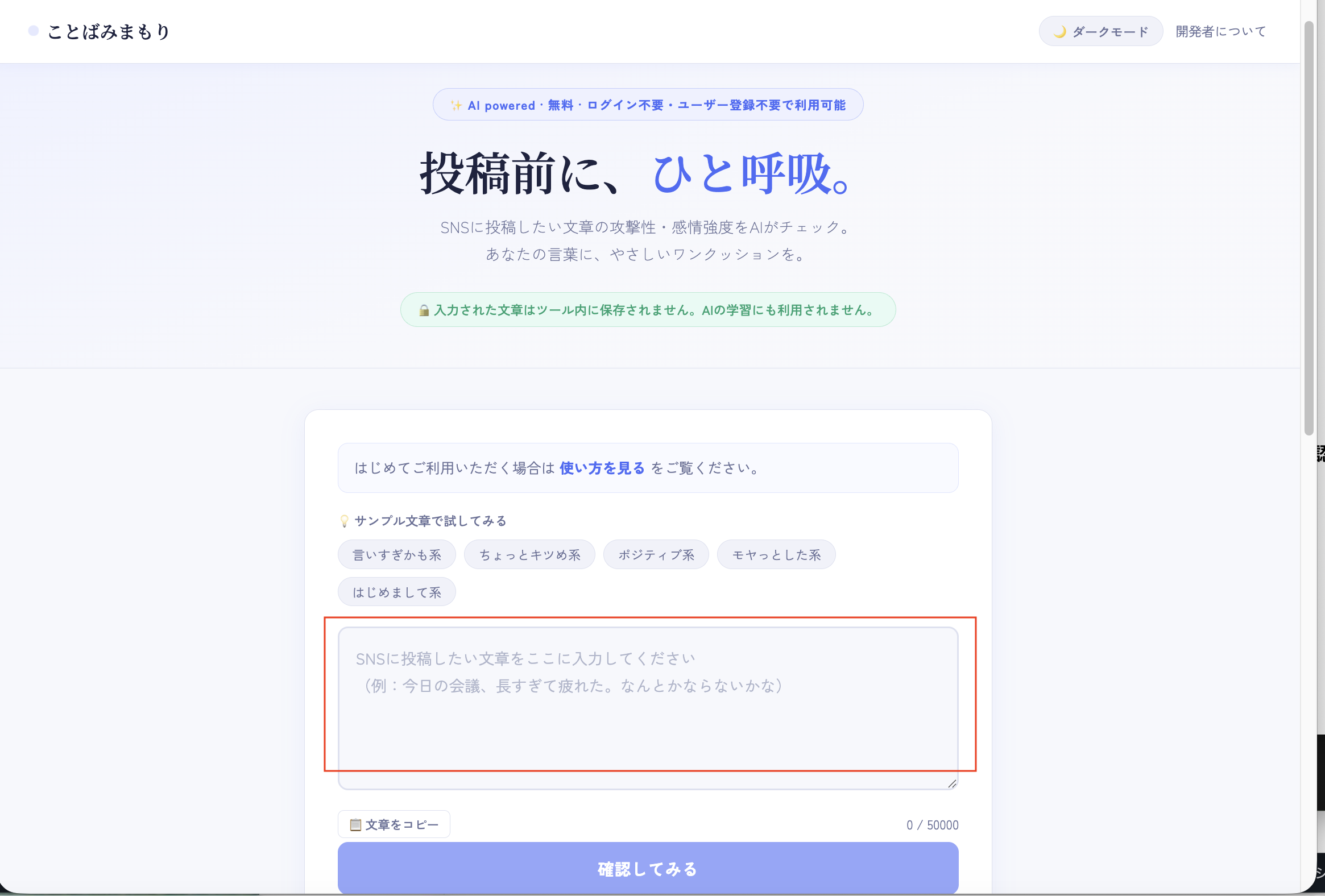
Type or paste the text you want to check.
- Short text and longer drafts can both be checked.
- Input text is not stored in the tool.
- Click Copy text below the input area to copy the current text to your clipboard.
- You can also copy the current text from the result area or result editor if needed.
Choose a scene and tone, then run the check
After entering text, choose a usage scene if helpful. You can adjust the viewpoint for a social media post, reply or comment, work request, apology or explanation, and more.
If you are unsure, you can keep the default general setting. You can also choose the advice tone. The default balanced tone is fine for most checks.
When you are ready, click Check my text to display AI-assisted reference information.
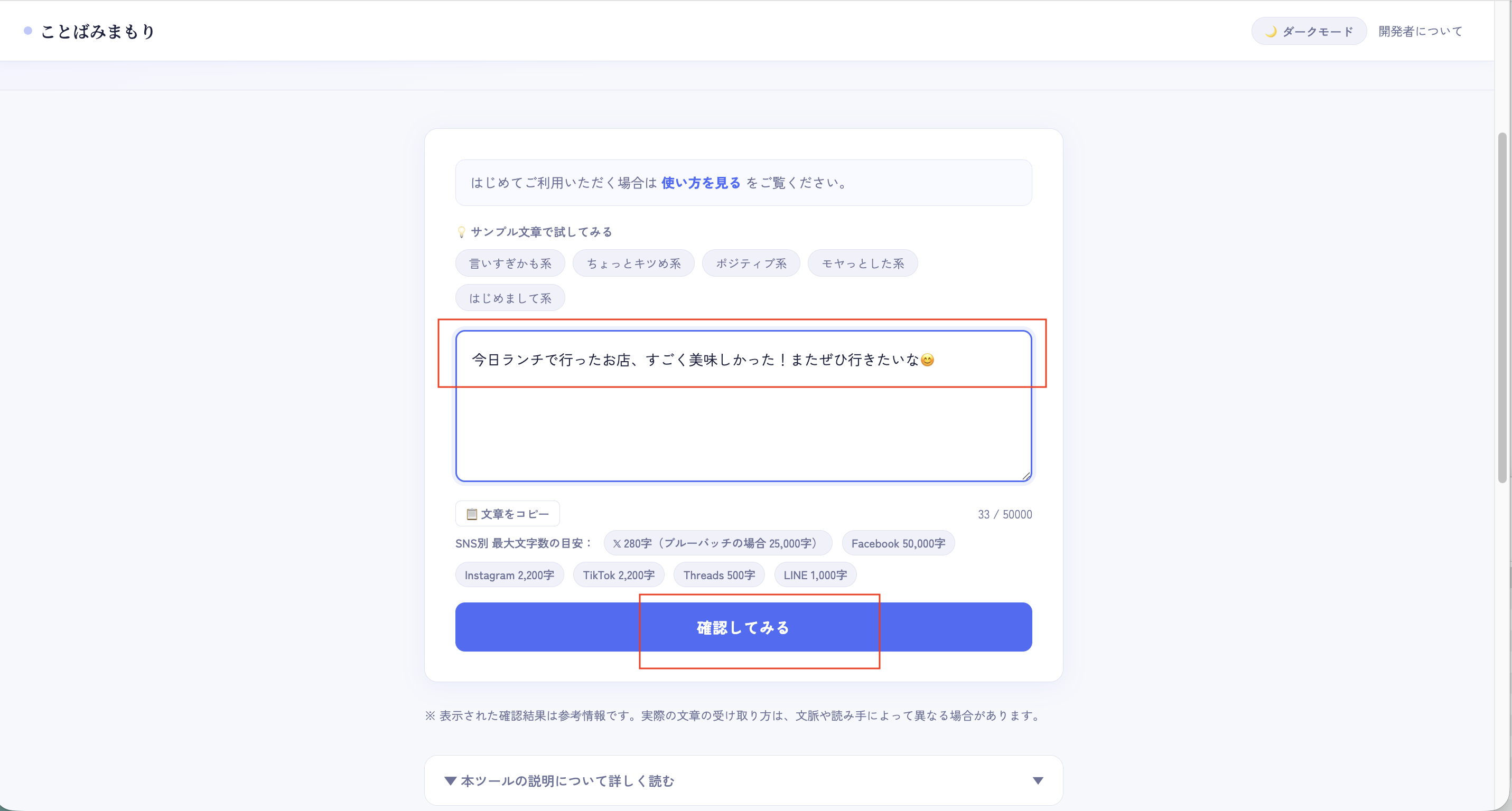
After entering text, click the check button.
- If the text area is empty, enter text before running the check.
- Results may take a little time to appear.
- Check results are provided in the selected display language.
- The general scene checks the whole text in a balanced way.
- The balanced tone is useful when you want to review how the wording may be received overall.
- The gentler tone is useful when you want the wording to feel softer and more approachable.
- The polite or business-like tone is useful for work or formal situations.
- The selected tone affects the direction of suggestions. It does not automatically create a finished post.
Use the result as a reference and revise if needed
The result shows an overall risk label, points that may concern readers, wording tips, next actions, and a pre-post checklist. Risk labels are shown with gentle explanations, such as low risk, medium risk, and high risk. The displayed risk level is a guide to how the wording may be received, including the possibility of misunderstanding or negative reactions. It does not indicate whether the information is accurate or current, the likelihood that it is misinformation, or the AI’s confidence. “Tips for checking information” appears immediately after the pre-post checklist. Action buttons for editing while viewing the result and copying the current text are shown near the result and again below these tips.
From the second check onward, a risk change banner shows how the latest result compares with the previous check. This makes it easier to see whether your revisions helped reduce the wording risk.
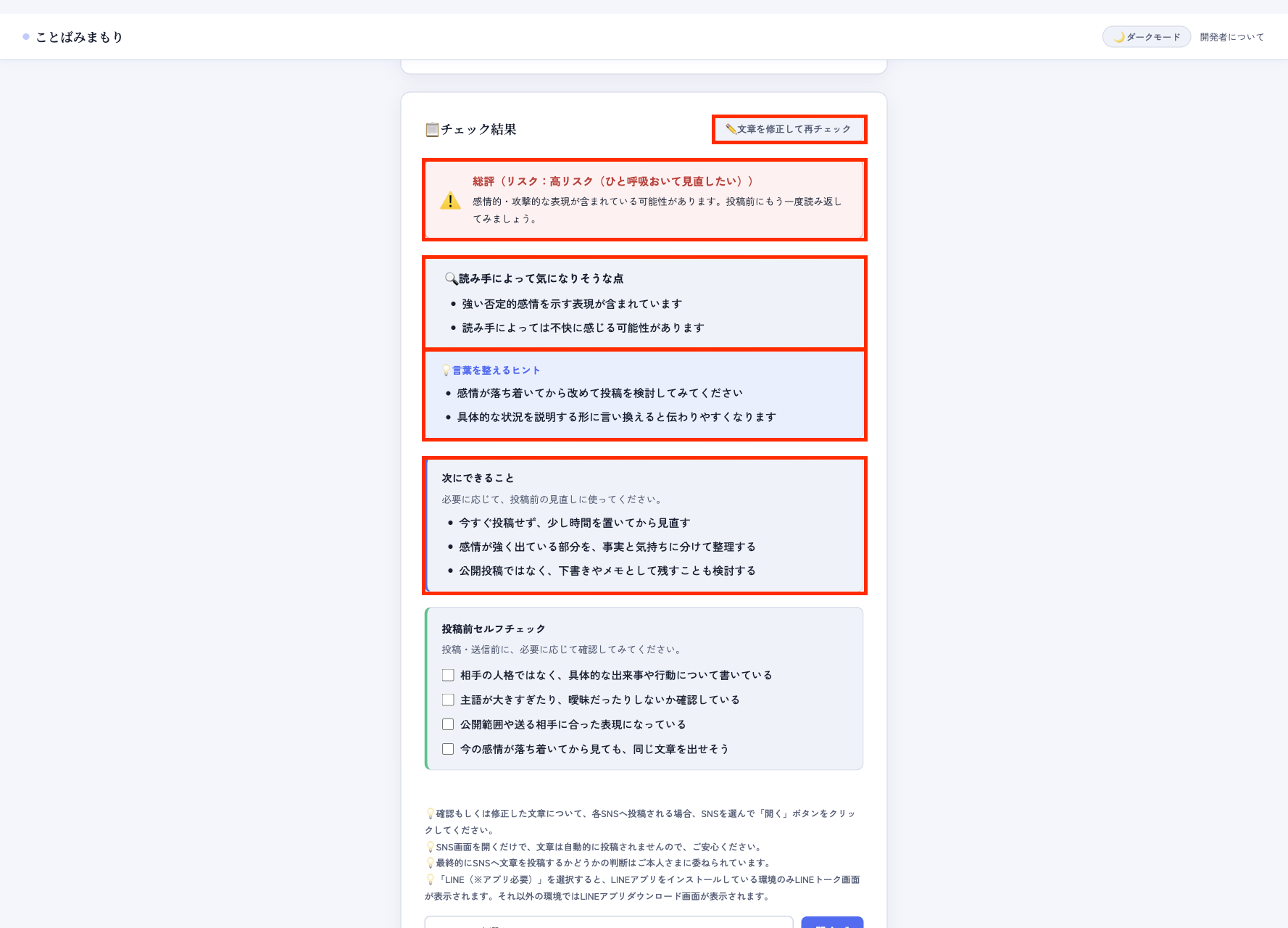
Use the result as a calm reference before posting. Click Edit while viewing result if you want to revise your text.
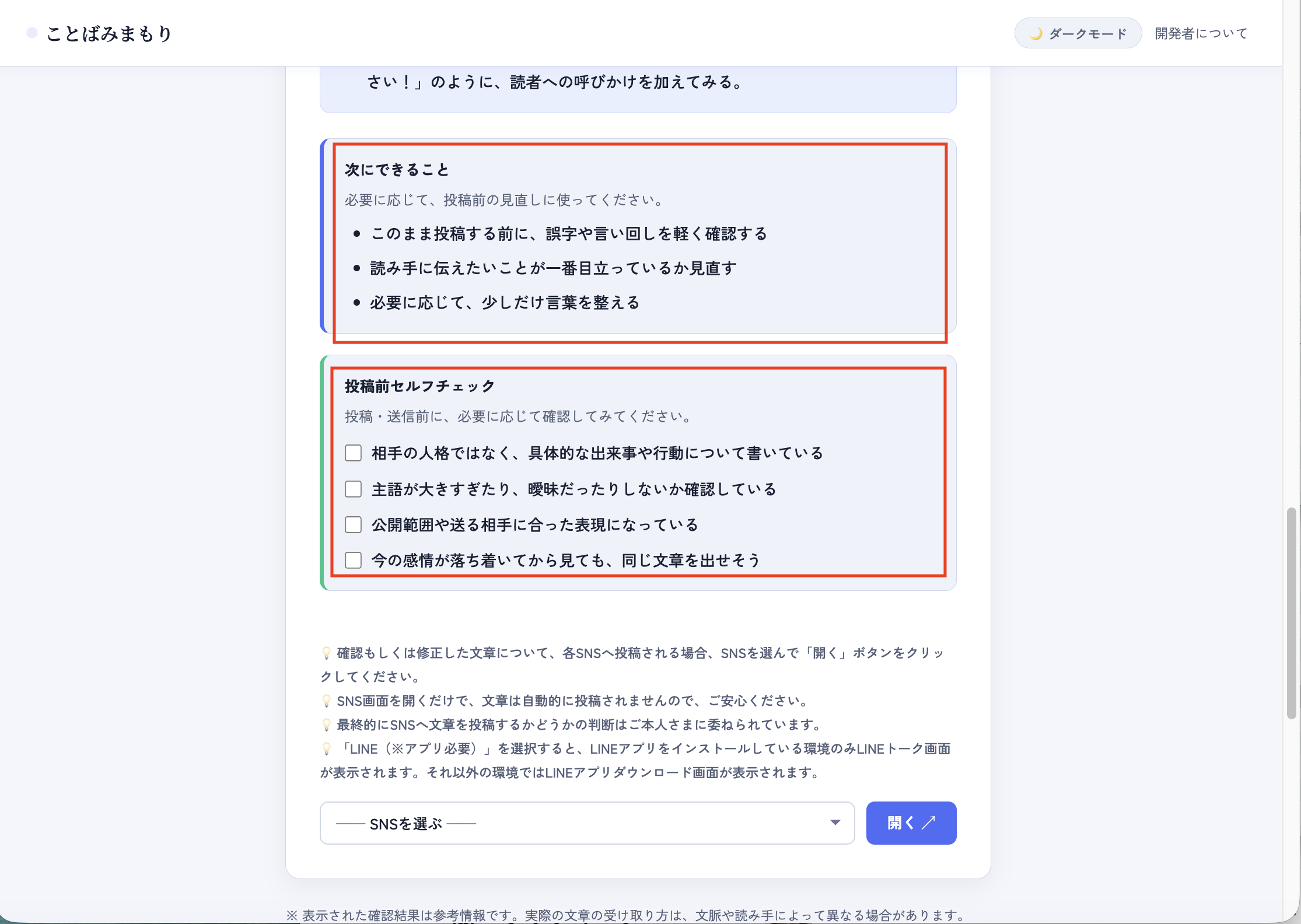
A self-checklist is also shown. The current screen places Tips for checking information after it, followed by the edit and copy buttons.
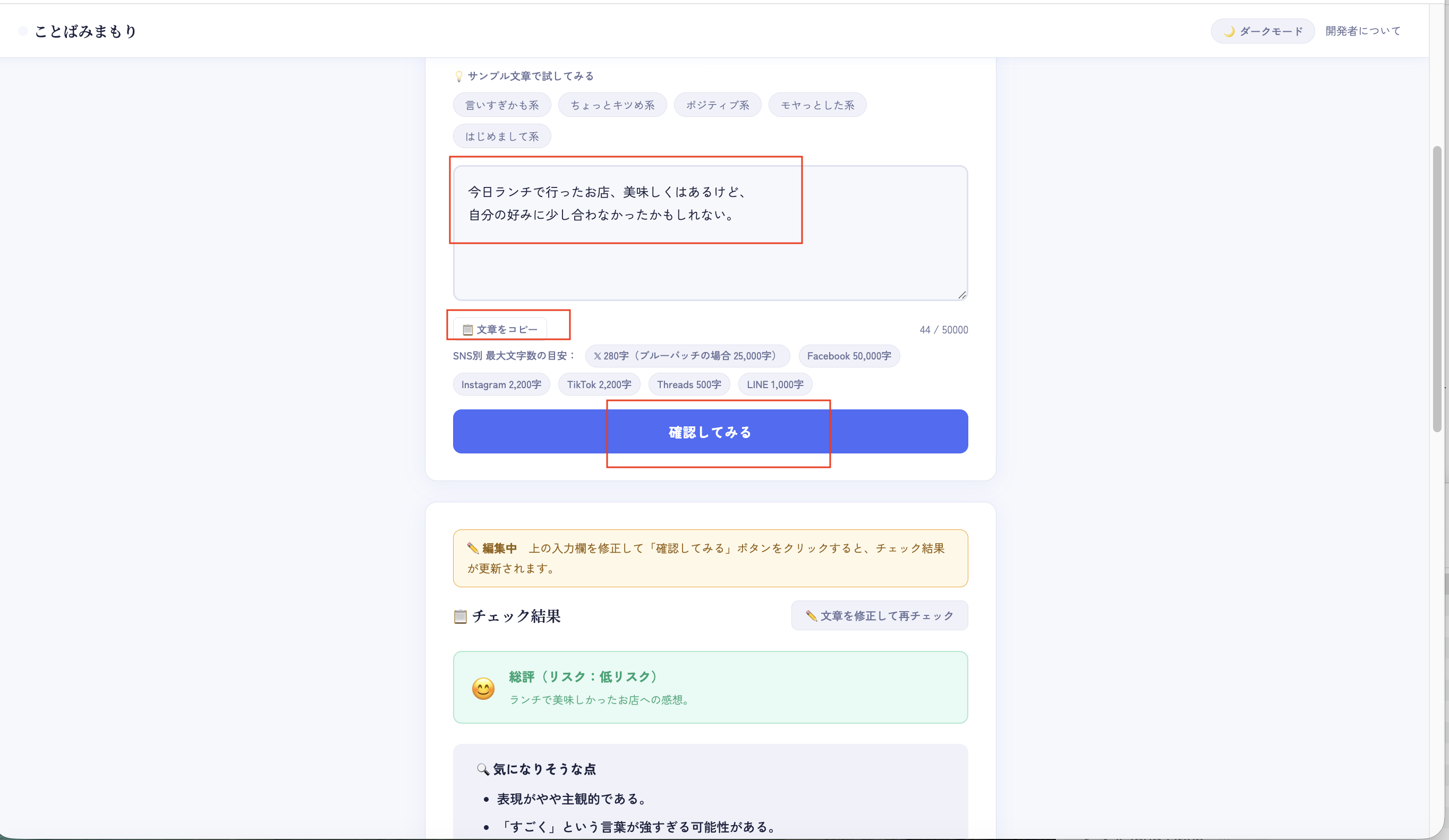
When revising the text while reviewing the verification results, make the edits in the editing area displayed at the bottom of the results.
Clicking the "Re-check revised text" button allows you to review the text again after the revisions.
If you want to copy the corrected text, click the "Copy text" button nearby.
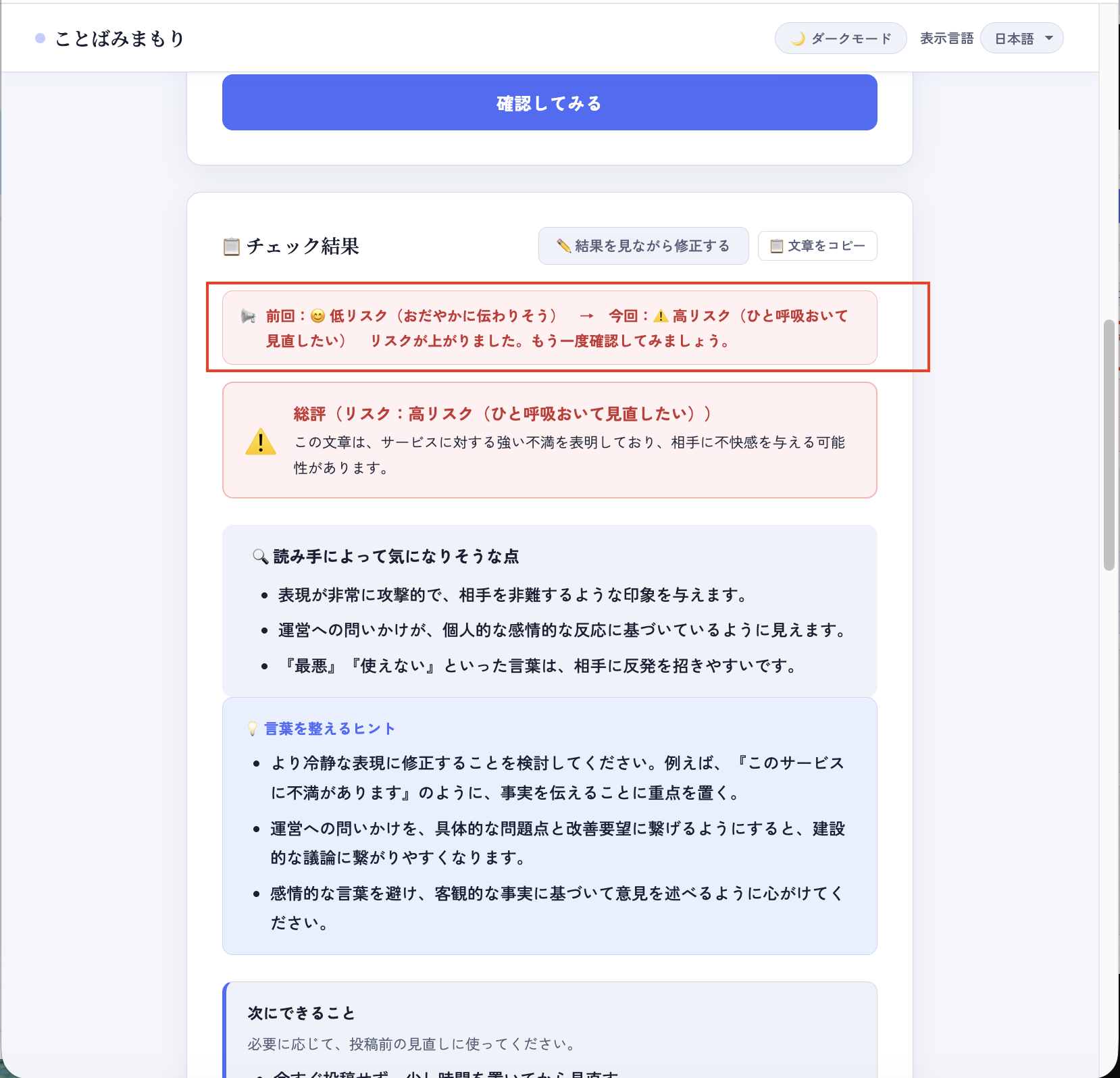
Once again, the results of the text review will display risks, points likely to concern readers, tips for refining the wording, and suggested next steps.
From the second check onwards, the results of the comparison with the previous check (risk change banner) are also displayed.
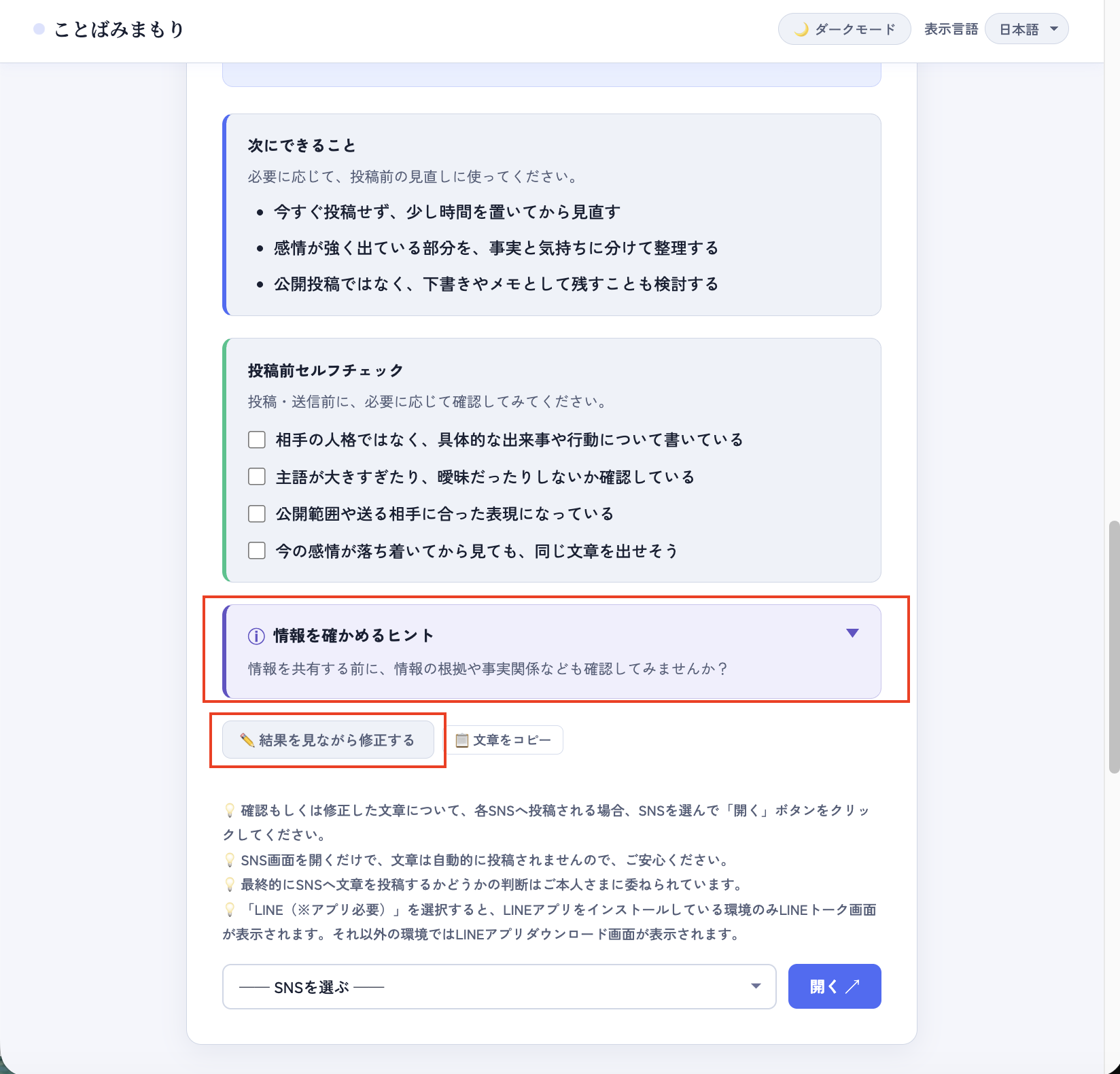
You can edit the text by clicking the ✏️ "Edit while viewing result" button located below “Tips for checking information.”
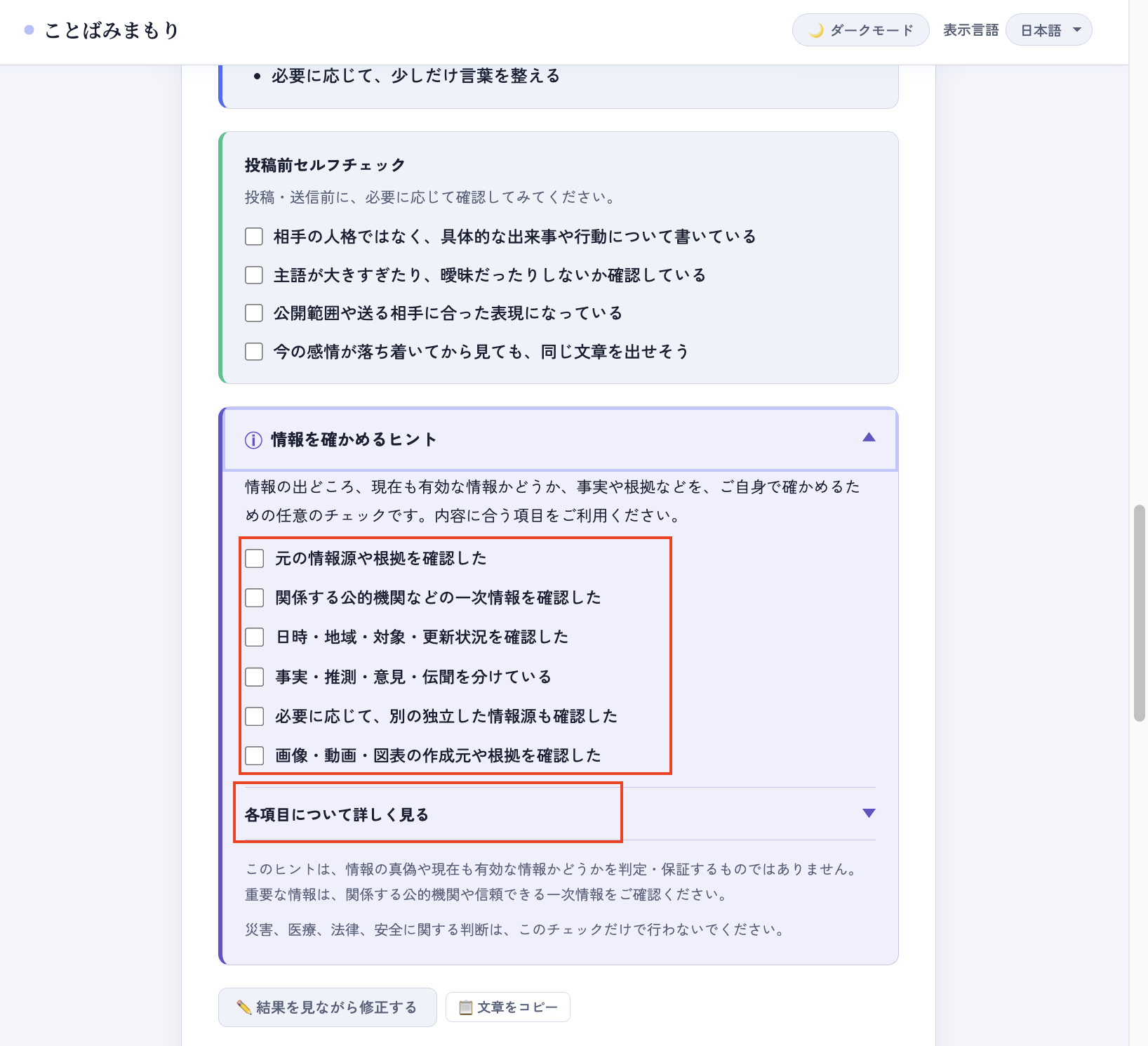
Open Tips for checking information to view the six optional checklist items. Select only the items relevant to what you are sharing, and open Learn more about each item when helpful.
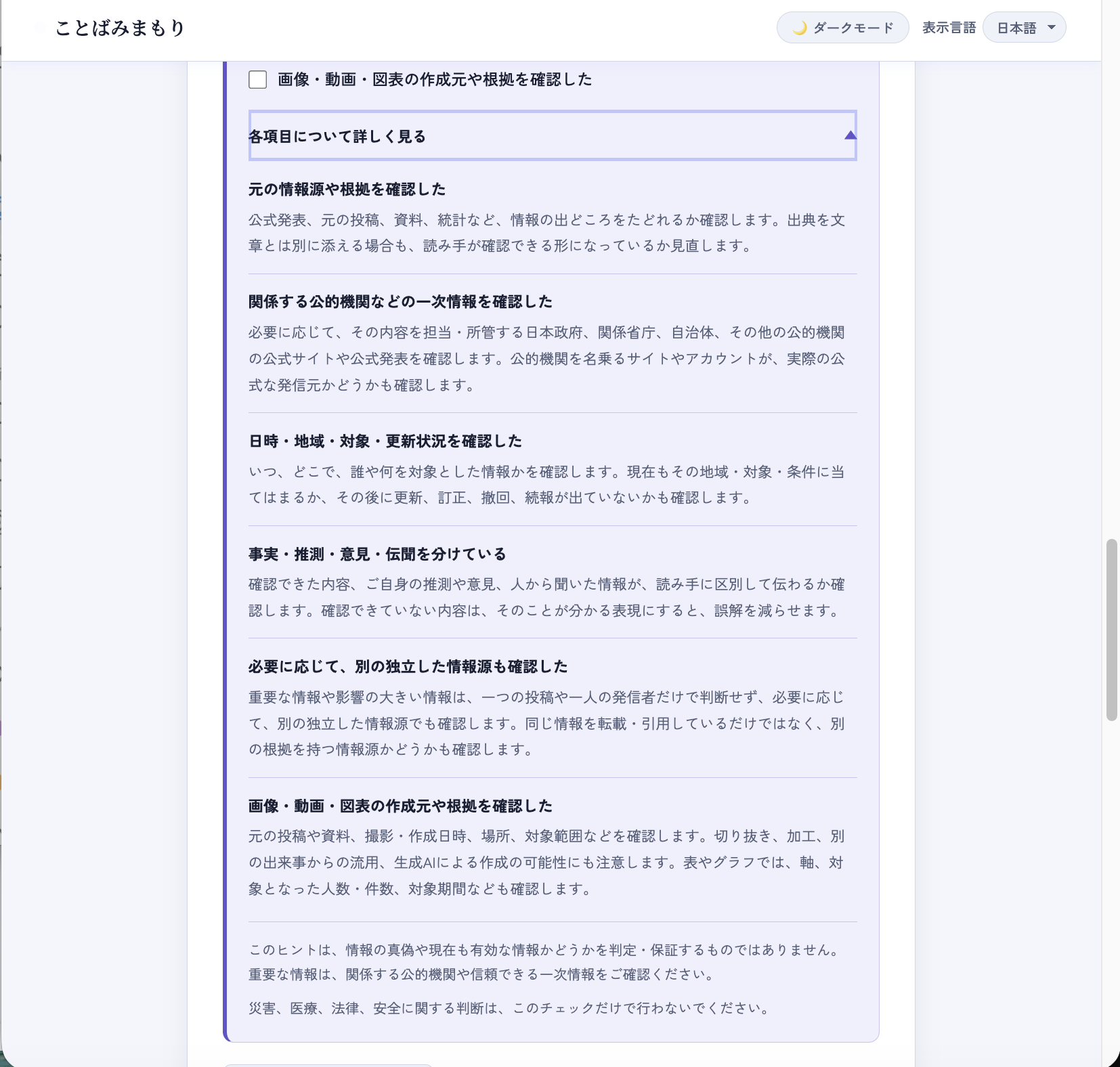
Open Learn more about each item to view an explanation for each checklist item. These tips do not determine or guarantee whether information is accurate or still applicable.
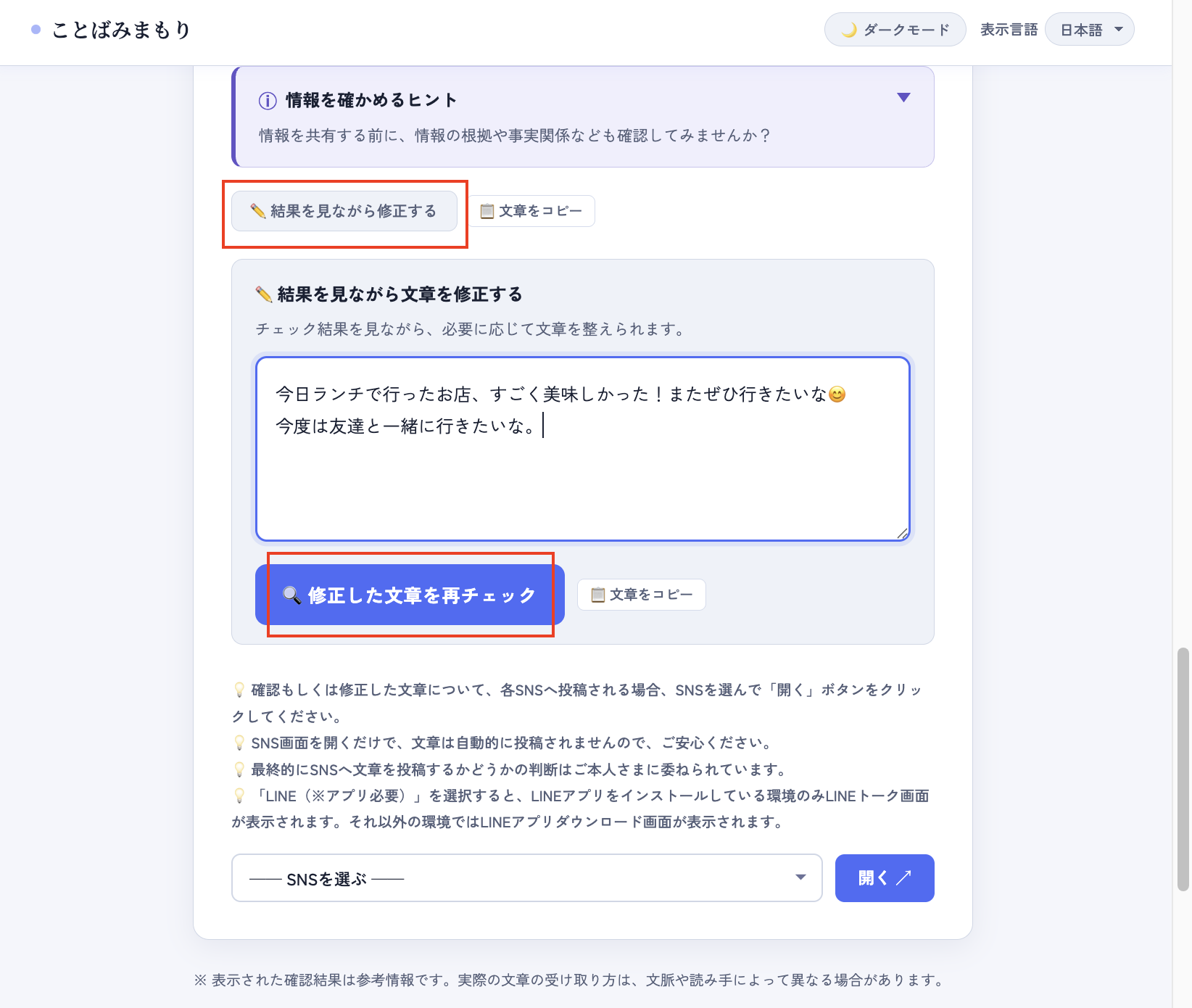
You can edit the input text by clicking the ✏️ "Edit while viewing result" button.
Clicking the "🔍 Recheck edited text" button updates the verification results based on the revised text.
- The result is reference information and does not guarantee accuracy or completeness.
- The final decision about whether to post remains yours.
- Click Edit while viewing result near the result or below “Tips for checking information” to show an editor under the result.
- The editor is filled with your current text, so you can revise it while keeping the result nearby.
- Edits in the result editor are also reflected in the main input field.
- Click Recheck edited text to run the check again with the revised text.
- Use Copy text near the result, below “Tips for checking information,” or under the editor to copy the current text.
- The pre-post checklist is optional. Existing functions such as choosing a social media service remain available even if you do not use it.
- The checklist state is not stored and is not sent outside the page.
Tips for checking information
“Tips for checking information” is an optional self-check that helps you review sources, dates, scope, updates, and other details before sharing information online.
It does not use AI to determine whether information is true or false. It is intended to provide a brief pause before sharing so that you can review the information yourself.
How to use it
- Open Tips for checking information in the result.
- Review the items that relate to what you plan to post or share.
- Select items when helpful.
- If anything needs another look, check the original source and the latest official information.
- Revise your wording if needed.
The checklist is optional. Please use only the items relevant to what you are sharing. Your selections do not affect the AI writing check result or the displayed risk level. You do not need to select every item.
Six checklist items
-
I checked the original source and supporting evidence.
Check whether the information can be traced to an original announcement, post, document, dataset, or other supporting material. If you provide a source separately, consider whether readers can access and review it.
-
I checked relevant primary sources from public authorities.
Where relevant, check official information from the government body, ministry, local authority, or other public institution responsible for the topic. Also confirm that a website or account claiming to represent a public authority is an official source.
-
I checked the date, location, scope, and any updates.
Check when and where the information applies, who or what it concerns, and whether it is still applicable. Also check for any updates, corrections, withdrawals, or follow-up announcements.
-
I separated facts, inferences, opinions, and second-hand information.
Check whether information presented as fact, your own inferences or opinions, and information received from others are clearly distinguished. When something has not been confirmed, wording that makes this clear can reduce misunderstanding.
-
Where appropriate, I checked another independent source.
For important or high-impact information, consider checking another independent source rather than relying on a single post or one person’s account. Check whether the other source has its own basis and is not simply repeating the same information.
-
I checked the source and supporting context of images, videos, and charts.
Check the original post or material, when and where it was captured or created, and what it represents. Consider whether it may have been cropped, edited, reused from another event, or generated using AI. For charts and graphs, also review the axes, sample size, scope, and time period.
What this feature does not do
This feature does not:
- determine whether information is true, false, or misinformation;
- retrieve or verify content from websites or social media posts;
- read or analyze the contents of linked pages;
- analyze images, videos, or charts themselves;
- guarantee the reliability of a person or organization; or
- guarantee that information is accurate or still applicable.
Important information
Do not rely on this checklist alone when making decisions involving disasters, health, legal matters, safety, or public procedures.
Please check reliable primary sources, including the latest official information from the relevant public authority. In an emergency, follow guidance issued by the appropriate authorities.
Checklist state and privacy
Your checklist selections are not sent to or stored on the server. They are reset when you close or reload the page.
They are also reset when a new writing check result is displayed.
Open a social media service if you want to post
After reviewing your text, you can choose a service and click Open. The tool only opens the selected service. It does not post your text automatically.
For pixiv, note, Girls Channel, and 好き嫌い.com, the Open button opens each service's top page.
If you click Open LINE, the LINE talk screen opens only in environments where the LINE app is installed. Otherwise, the LINE app download page may open.
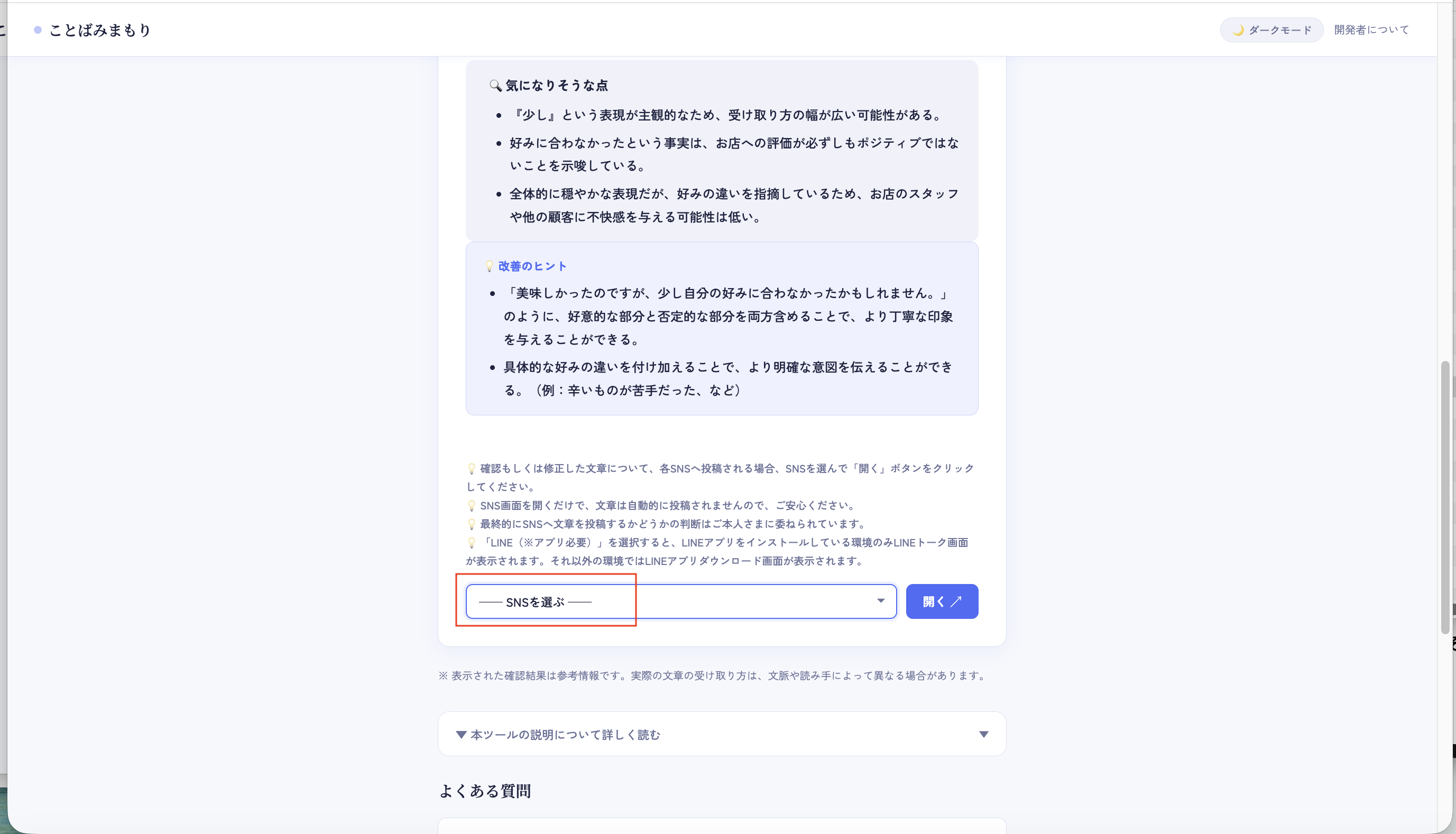
Choose a service from the list.
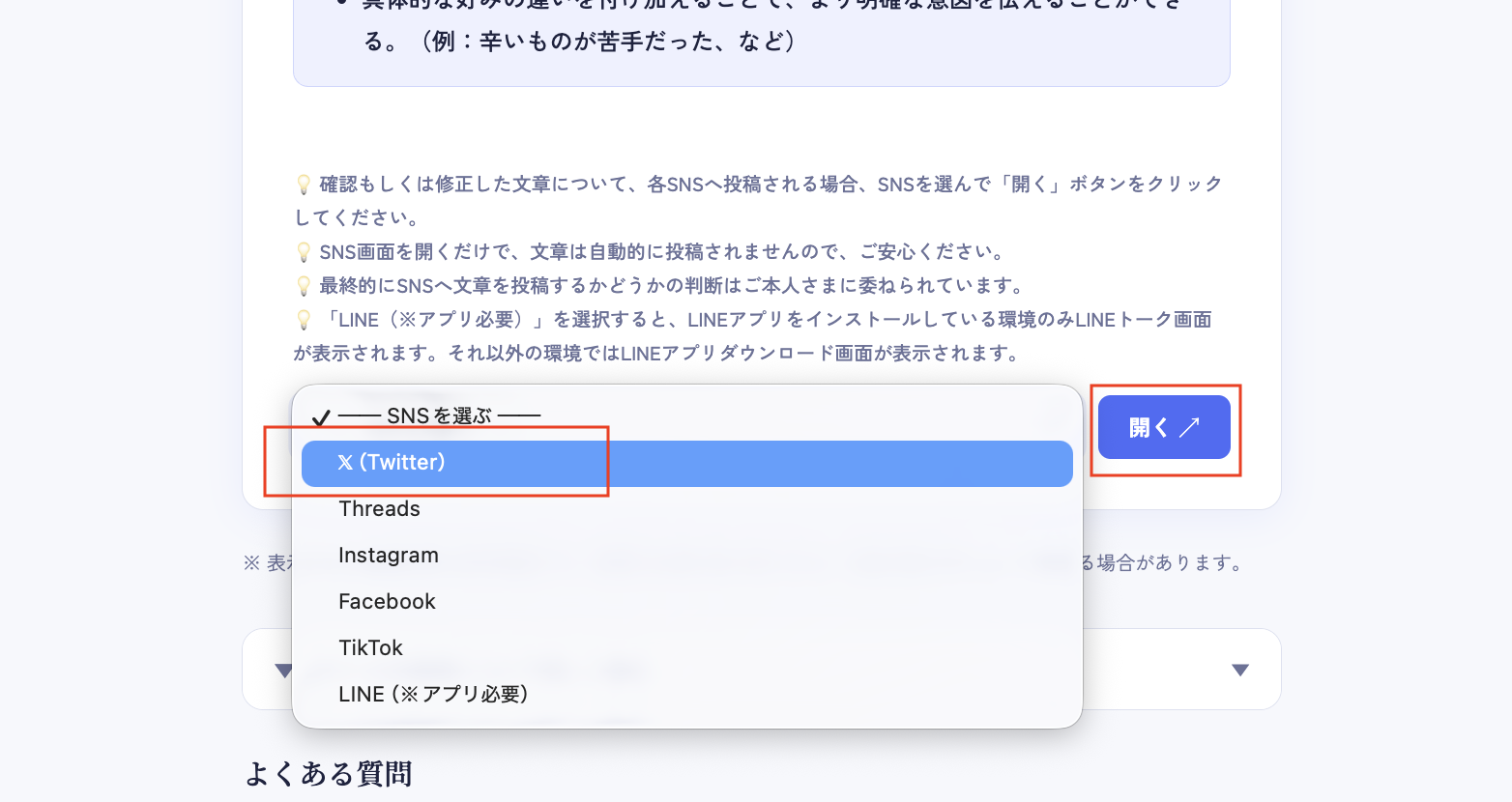
Select the service you want to open.
- Opening a service does not automatically post your text.
- Supported destinations include X, Threads, Instagram, Facebook, TikTok, LINE, LinkedIn, YouTube, pixiv, note, Girls Channel, and 好き嫌い.com.
- The 140-character limit for pixiv and the 500-character limit for note refer to comments. For Girls Channel and 好き嫌い.com, the comment limit is shown as “not confirmed,” and Kotoba Mimamori does not perform an over-limit check for those services.
Example: opening X
If you choose X and click Open, the X posting screen opens. You can then decide whether to paste and post your text yourself.
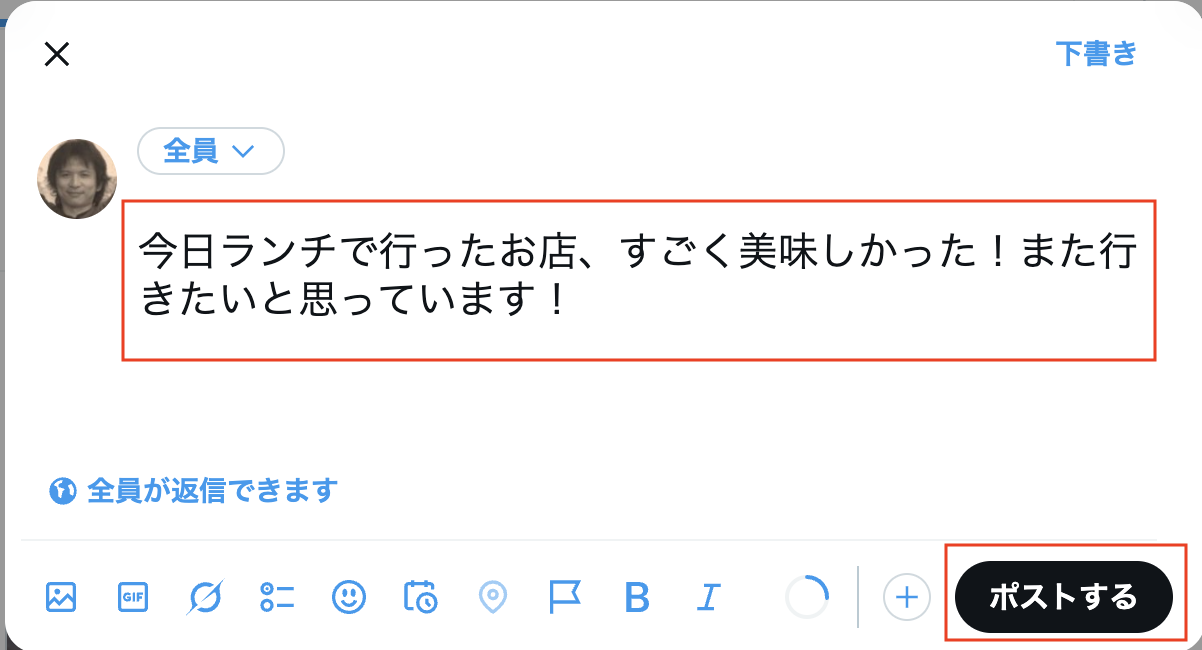
The tool opens X, but it does not post automatically.
Notes for safe use
- The tool is free.
- No login or user registration is required.
- No app installation is required.
- Input text is not stored in the tool or on the server.
- Please see the Terms and Disclaimer for details.